
The KIVVI Telegram bot lets you manage shipments, track packages, and perform other actions directly in Telegram. This guide covers all available features and commands.
Connect the Telegram bot
Sign in to your KIVVI account. If you haven’t connected the Telegram bot yet, find the Telegram card and select Register in Telegram. The card will remain visible until registration is complete.
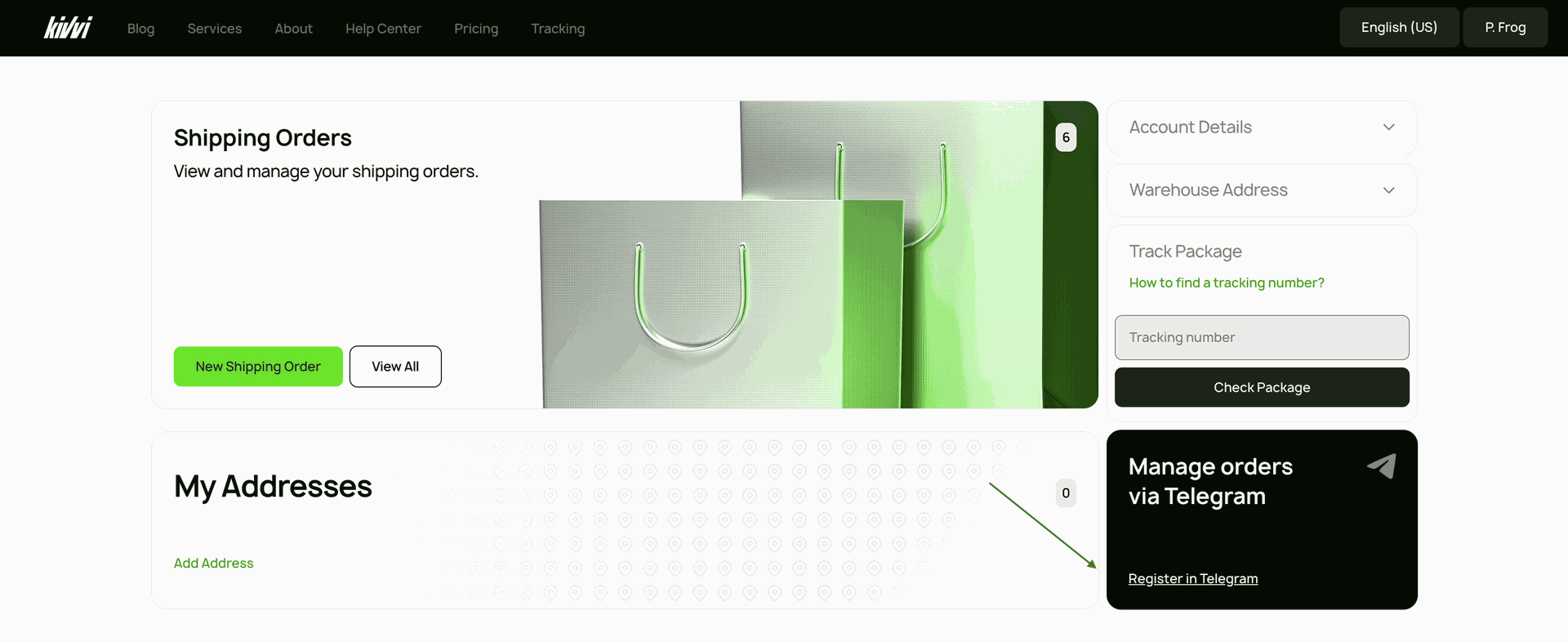
You will then be redirected to the Telegram bot. To get started, enter or select the /start command.
The welcome message will list the bot’s available features.
Telegram Notifications
The bot automatically sends notifications about package updates and status changes.
Package Updates
| Event | Notification |
|---|---|
| Awaited Package Created | "We are expecting a new package for you. Tracking number: [tracking number]." |
| New Package Received | "We have received a new package for you. Tracking number: [tracking number]. We’ll process it soon." |
| Package Processed | "Package [tracking number] has been processed. Contents: [item name], quantity: [quantity]." |
| Shipped | “Your packages have left our warehouse and are now in transit. Shipment number: [shipment number].” |
| Package Ready for Pickup | “[QR code]Package [tracking number] has been handed over to the delivery service and is ready for pickup in [city] at [address].If you have any questions, call [phone number].Show this QR code at the pickup point. It contains your package details and will be scanned to confirm pickup.” |
Warehouse Operation Confirmations
Notifications are sent after the relevant warehouse operation has been confirmed.
| Warehouse Operation | Notification |
|---|---|
| Receipt | “Package [tracking number] has arrived at the KIVVI warehouse in [city], [country]. We’ll let you know when it’s ready for the next stage of delivery or pickup.” |
| Delivery | “Package [tracking number] is on the way to the next processing facility, where it will be prepared for international shipping.” |
| PIN Validation at Pickup Point | “Package [tracking number] has been handed over to [carrier name]. New tracking number: [carrier tracking number]. Use it to continue tracking your delivery.” |
Check Package Status with /status
After you request an update using the /status command, the bot will show the current package information.
| Package status | Bot response |
|---|---|
| Received Package | Tracking number: [tracking number]Status: Arrived at the warehouse |
| Processed Package | Tracking number: [tracking number]Status: ProcessedWeight: [weight]Combined package number: [number] |
Interactive Buttons:
| Button | Action |
|---|---|
| Contents | Shows the item names and quantities. |
| Parent Package | Appears when multiple packages have been combined for delivery. Shows the tracking number, status, and the packages included in the combined package. |
| Child Package | Opens an individual package within the combined package and shows its items and quantities. |
Note: Combined package information is shown only when a package has been combined with other packages and the user is authorized to view those details. Packages that have already left the warehouse are shown with the status Shipped.
Profile Information with /profile
After you enter the /profile command, the bot will show the following information:
| Section | Description |
|---|---|
| User Profile | Your account details |
| Delivery Address | Your current delivery address. |
| Boxberry Point URL | The address and link for your selected Boxberry pickup point, if one is included in your delivery settings. |
| /delivery_methods | Lets you select or change your delivery method. |
| US Address button | Shows the address of the KIVVI warehouse in the US. |
Note: Please check the Configuration readme for more information
Actions available through Telegram commands
Add an expected package with /declare
Use the /declare command to add the tracking number of a package expected at the KIVVI warehouse.
| Step | Bot Response |
|---|---|
| 1. Enter the tracking number | “Enter the package tracking number.” |
| 2. Invalid format | “Invalid tracking number format. Use only Latin letters and numbers, without spaces or special characters.” |
| 3. Confirmation | “Select Yes to confirm.” |
| 4. Package added successful | “We’re expecting your package. Tracking number: [tracking number].” |
Contact Support with /support
Use the /support command to create a support request.
Change the Recipient
After you confirm the recipient change by selecting Yes, a support request will be created automatically.
| Step or situation | Bot Response |
|---|---|
| 1. Enter package number | "Enter your package number:" |
| 2. Package not found | “Package [number] was not found. Check the number and try again.” |
| 3. Package registered to another recipient | “Package [number] is registered to another recipient.” |
| 4. Package contains child/other packages | “The recipient cannot be changed because other packages have been combined into this package.” |
| 5. Package already packed | “The recipient cannot be changed. Package [number] has already been packed and is ready for shipping.” |
| 6. Package already shipped | “The recipient cannot be changed because the package has already left the warehouse.” |
| 7. Valid package | “Enter the new recipient’s personal KIVVI ID.” |
| 8. Recipient found | “Assign [name] as the recipient for package [number]?” |
| 9. Confirmation buttons | Yes / No |
Note: For privacy, the notification will display only the recipient’s first name and the first initial of their last name.
Support request status notifications
The bot will automatically notify you when the status of your support request changes.
| Event | Notification |
|---|---|
| Support Request Updates | “Your recipient change request has been updated. Request number: [request number] Package: [package number] New status: [status].” |
Telegram Bot Commands
| Command | Description |
|---|---|
| /start <access_token> | Connect your KIVVI account to the Telegram bot. |
| /status | Checks the status of a package using its package number or tracking number. Shows package details and the Contents, Combined Package, and Included Package buttons when applicable. |
| /declare | Adds an expected package. |
| /support | Creates a support request. Available options include Change Recipient. |
| /profile | Shows your profile information and includes a US Warehouse Address button. |
| /delivery_methods | Lets you choose between delivery to an address and pickup at a Boxberry location. |
| /cancel | Cancels the current action. |
Support
If you have any questions about the Telegram bot, our support team is always ready to help.