
In addition to the standard account features, KIVVI provides business customers with additional tools. This guide explains the features and information available through the B2B portal.
Invoices & Bills
This section lets you view all invoices for services provided.
Invoice statuses
| Status | Description |
|---|---|
| Waiting for payment | The invoice has been issued and is awaiting payment. |
| Authorized | The payment has been authorized, but processing has not yet been completed. |
| Paid | The invoice has been paid in full. |
Search invoices
You can search for invoices using the following information:
- invoice name;
- customer;
- recipient;
- invoice date;
- due date;
- status.
To perform a search, select a search type, enter a value in the search field, and press the magnifying glass icon.

View an invoice
Click the invoice number to view the full details.
From the invoice page, you can:
- download the invoice as a PDF file by clicking "Download";
- print the invoice;
- pay an unpaid invoice by clicking "Pay Now" and selecting a payment method.

Packages
The packages section provides detailed information about all packages associated with your account.

Expected packages
Not yet at the KIVVI warehouse.
Stored packages
At the KIVVI warehouse and awaiting shipment.
Shipped packages
On their way to the recipient.
Delivered packages
Delivered to the recipient.
Package statuses
This section lets you view packages at different stages of processing and delivery.
| Section | Description |
|---|---|
| Stored | Packages currently stored at the KIVVI warehouse and awaiting shipment. |
| Shipped | Packages on the way to their destination. |
| Delivered | Packages that have been delivered to their recipients. |
Expected packages
Sorting expected packages
You can sort expected packages by:
- tracking number;
- order.
Search expected packages
You can search for expected packages using the following information:
- tracking number;
- order;
- recipient.
Select a search field, enter a value, and click the magnifying glass icon.
Stored, shipped, delivered packages
Sorting packages
You can sort packages by:
- package name;
- weight.
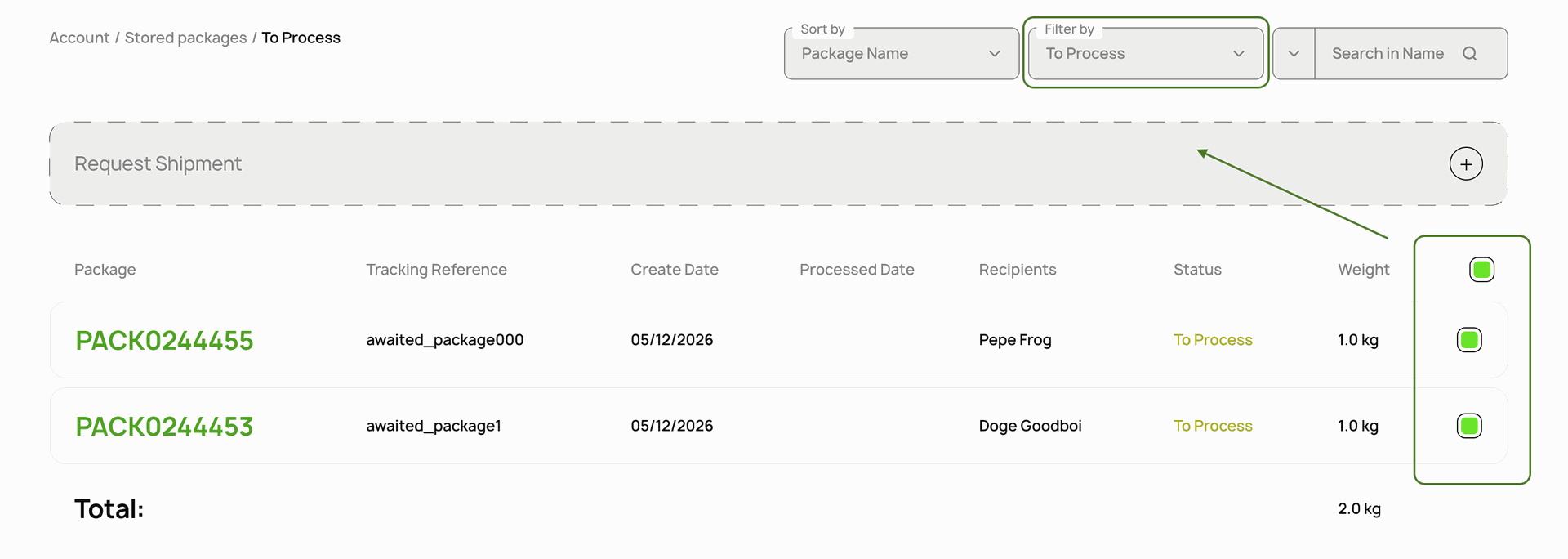
Filter by status:
You can filter packages by status.
Filter | Description |
|---|---|
| To Process | The package has arrived at the warehouse but has not yet been processed. Its contents have not yet been confirmed. |
| Processed | The package has been processed and can be prepared for shipment. |
| Open | The grouped package is being prepared. Other packages have already been added to it, but the grouping process is not yet complete. |
| Closed | The grouped package is complete and ready for shipment. |
Search packages
You can search for packages using the following information:
- package name;
- tracking number;
- recipient;
- creation date.
Select a search field, enter a value, and click the magnifying glass icon.
Example: If you know the tracking number, select "Tracking Number" and enter it in the search field. The results will show either the package itself or the combined package that contains it.
How packages are grouped
Packages at the warehouse can be stored separately or grouped together for shipment.
- Individual packages that are stored separately and do not contain other packages.
- Grouped packages that contain one or more packages combined for shipment.
To find a specific package, use the search function.
Click a grouped package to view the packages inside it. Then click a package to see the items it contains.

Shipment request
You can select packages that are stored at the warehouse and awaiting processing, then submit a request to have them shipped.
To submit a request:
- Filter packages by the "To process" status.
- Select the packages using the checkbox next to each one. To select all packages, use the checkbox at the top of the list.
- Click "Request Shipment".
- We will collect the selected packages and send them on the next available shipment.
Support
If you have any questions about the B2B portal features, our support team is always ready to help.