
In addition to the standard portal features, Kivvi provides enhanced functionality for our B2B customers. This guide covers the additional tools and information available to business users.
Invoices & Bills
You can view all invoices for services provided.

Invoice States
| State | Description |
|---|---|
| Waiting for payment | Invoice has been issued and is awaiting payment. |
| Authorized | Payment has been authorized but not yet fully processed. |
| Paid | Invoice has been fully paid. |
Search Invoices
You can search for invoices using the following fields:
- Invoice name
- Customer
- Recipient
- Invoice date
- Due date
- Status
To perform a search, select a search type, enter a value in the search field, and press the magnifying glass icon.

View Invoice
Click on the invoice name to view the full invoice details.
From the invoice view, you can:
- Download the invoice as a PDF file by clicking the "Download" button
- Print the invoice directly
- Pay the invoice by clicking the "Pay Now" button, selecting a payment method, and proceeding with the payment (if the invoice is unpaid)

Packages
The Packages section provides detailed visibility into all packages associated with your account.

Awaited Packages
View incoming packages that have not yet been received at our warehouse.
Sort by:
- Package name
- Order name
Search:
You can search for packages using the following fields:
- Order name
- Tracking number
- Recipient
To perform a search, select a search type, enter a value in the search field, and press the magnifying glass icon.
Physical Packages
The Physical Packages section allows you to view packages at different stages of the shipping process.
| Section | Description |
|---|---|
| Stored | Packages currently at our warehouse awaiting shipment. |
| Shipped | Packages currently on their way to your destination. |
| Delivered | Packages that have been delivered. |
Package Structure
Packages are displayed as you would see them walking through a warehouse. On the first screen, you will see:
- Standalone packages - packages that do not contain other packages inside
- Parent packages — packages that contain child packages
To find a child package, you can use the search filter.
If you want to see the list of child packages or the items a package contains, click on the package name.

Shipment Request
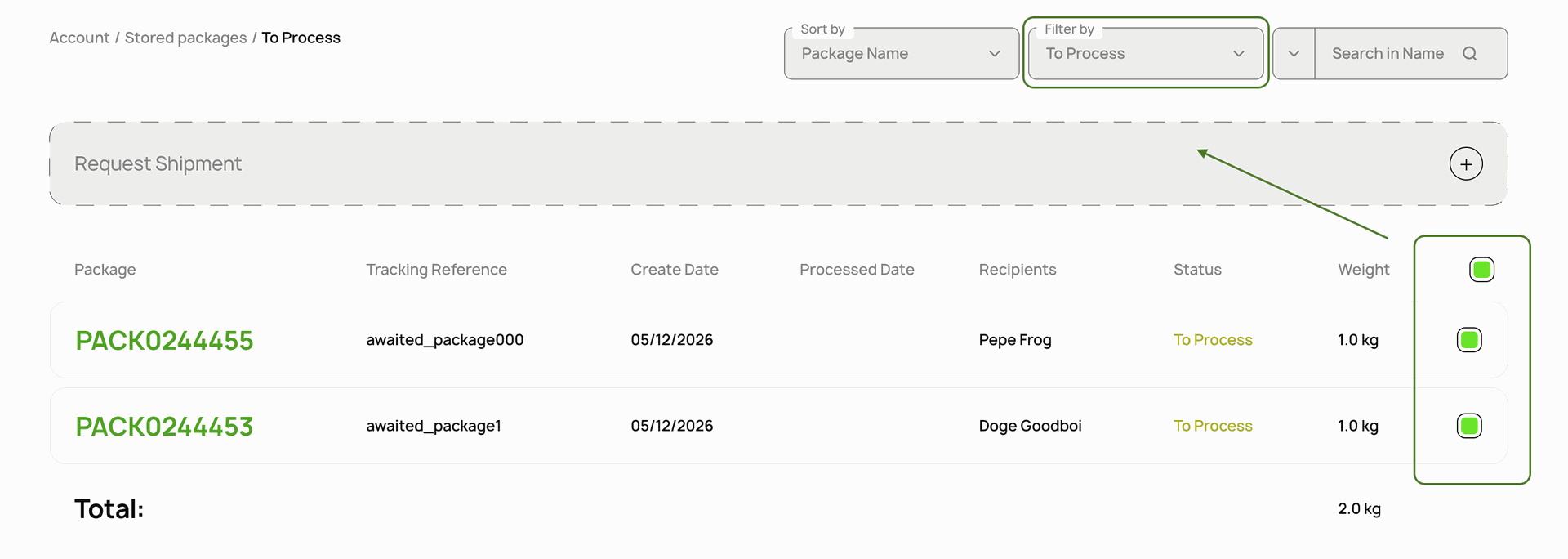
You can filter and select stored "To Process" packages that you want to be shipped.
To request shipment:
- Filter "To Process" packages
- Select packages by clicking the checkbox next to each package, or select all packages by clicking the checkbox in the header
- Press the "Request Shipment" button
- We will collect the packages and send them with the first available shipment
Sort and Filter Physical Packages
Sort by:
- Package name
- Weight
Filter by:
| Filter | Description |
|---|---|
| To Process | Package has been received at our warehouse but has not yet been processed. We do not yet know what is inside, and it is awaiting its turn for processing. |
| Processed | Package has been processed and can be prepared for shipment. |
| Open | Package is being prepared for shipment. It contains child packages but is not yet closed. |
| Closed | Package contains child packages and is ready to be shipped. |
Search Physical Packages
You can search for physical packages using the following fields:
- Package name
- Reference number (tracking number)
- Client
- Recipient
- Country
- Creation date
To perform a search, select a search type, enter a value in the search field, and press the magnifying glass icon.
Example: If you need to find a package with a known tracking number, select the "Reference number" search type, enter the value, and perform the search. The package itself — or the parent package that contains the requested package — will be displayed.
Support
If you have any questions about B2B features, our support team is available to assist.